
On-site messages
Banners and popups shown to subscribers while they are on your store: payment issues, card updates, reactivation and upsell offers. How to turn them on, how they are styled, and what to check when one is not appearing.
What runs on your store
Two Shopify theme components, working together:
| Component | Type | What it does |
|---|---|---|
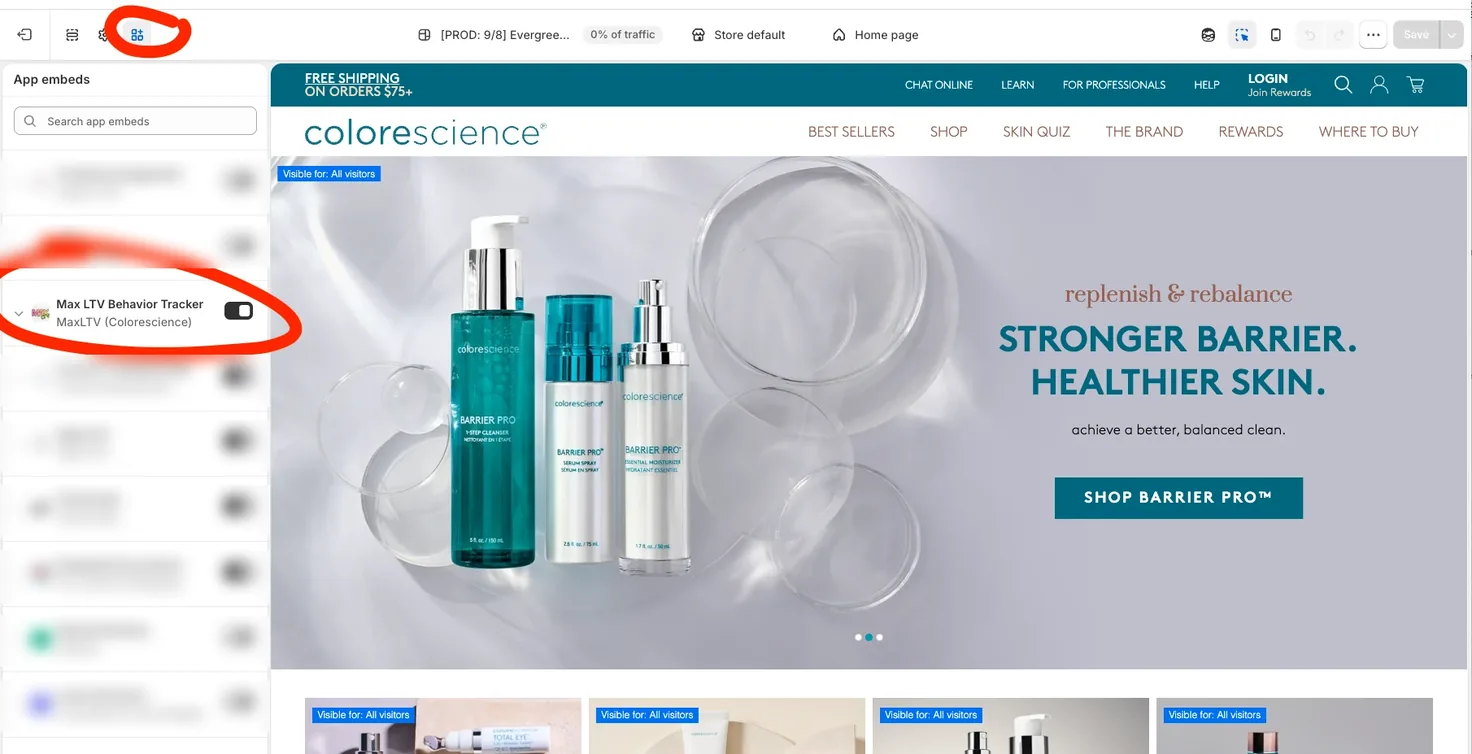
| MaxLTV Behavior Tracker | App embed | Identifies the subscriber and records on-site behaviour |
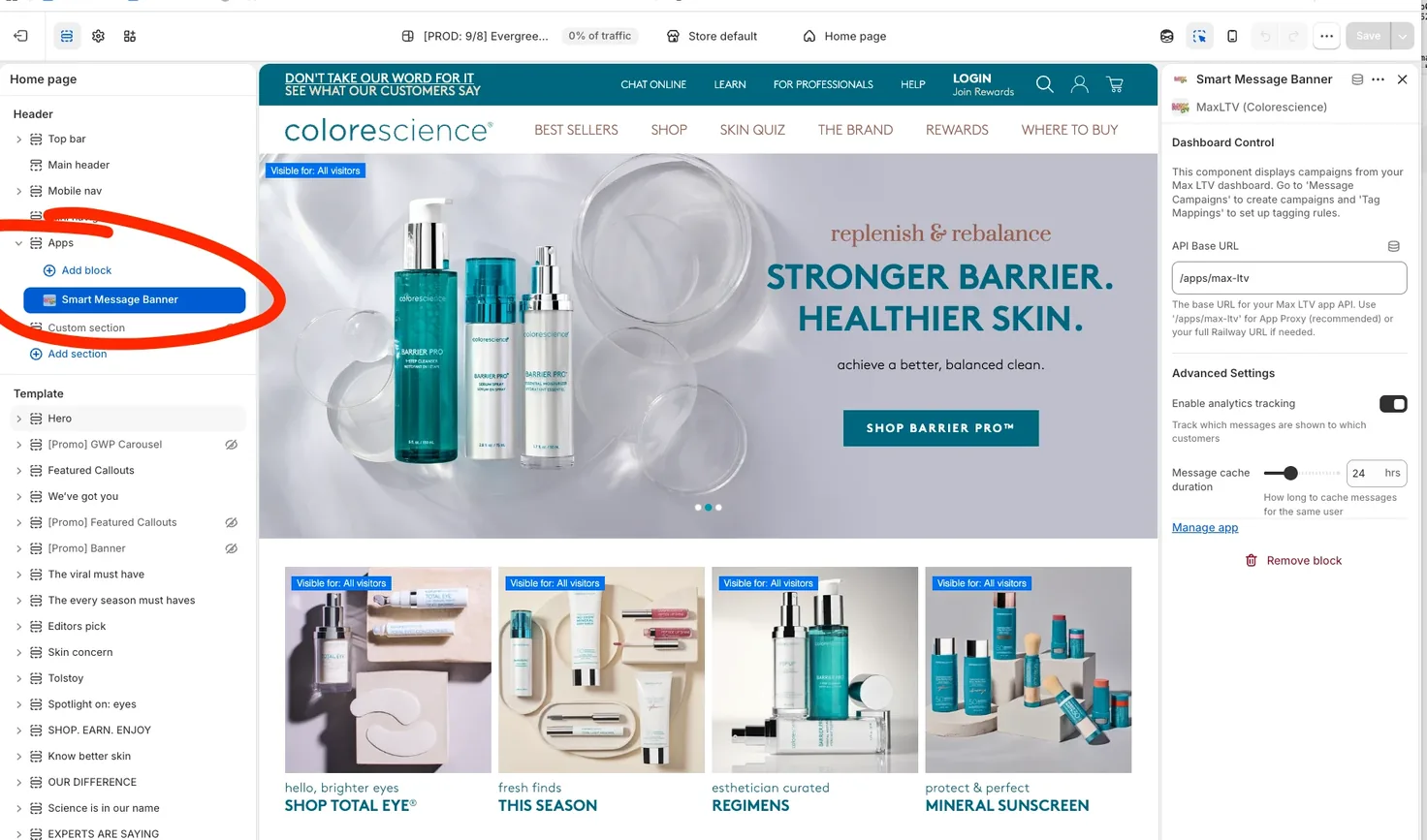
| MaxLTV Message Banner | Section block | Renders whichever campaign the subscriber qualifies for |
The tracker is required. Without it there is no way to tell a subscriber from an anonymous visitor, so nothing can be targeted and nothing will show.
Turning them on
- In Shopify, go to Online Store, Themes, Customize.
- Under App embeds, switch on MaxLTV Behavior Tracker.
- Add the MaxLTV Message Banner block to your header section.
- Click Save.
Block settings
The theme block itself has only three settings, and the defaults are almost always right:
| Setting | Default | Notes |
|---|---|---|
| API Base URL | /apps/max-ltv | The App Proxy path. Leave it unless we tell you otherwise. |
| Enable analytics tracking | On | Turning it off blinds the campaign reporting. |
| Message cache duration | 24 hrs | How long messages are cached for the same visitor. See caching below — this one catches people out. |
How targeting works
There is no fixed list of message types. You build campaigns in Message Campaigns, and each one is targeted by Shopify customer tag. MaxLTV applies tags as it learns things about a subscriber — a failed payment, a card about to expire, elevated churn risk — and a campaign shows to whoever carries the tag it targets. Tagging rules live under Tag Mappings.
That means the message types are yours to define. The usual set is a payment-issue banner, a card-expiry prompt, a save offer for at-risk subscribers, a reactivation offer for churned ones, and an add-to-next-order upsell — but those are campaigns someone built, not fixed features.
Each campaign has three targeting controls:
| Control | Behaviour |
|---|---|
| Target customer tags | Show to customers carrying any of these tags |
| Excluded customer tags | Hide from customers carrying any of these, even if the target tags match. Exclusion always wins. |
| Target page URLs | Glob patterns matched against the page path, such as /products/* or /cart. Leave empty to show on every page. |
When a subscriber qualifies for more than one campaign, priority decides which shows. It defaults to 50, so a campaign that should win needs a higher number than the ones it competes with.
What you can change
Campaigns are yours to edit. Per campaign:
- Display type — banner or popup.
- Content — the message is HTML, so copy, markup and inline styling are all yours.
- Background colour, font colour and font size.
- Closable — whether the subscriber gets a dismiss control. On by default.
- Persistence — how long a dismissal lasts. By minutes, hours, days, page loads, or a total number of closes before it stops coming back.
- Priority — which campaign wins when several match.
Each campaign can also carry a goal, so reporting measures the thing you actually wanted: a click on a particular link, a purchase of a given product, a tag being added, or a Recharge or Shopify event such as a charge being paid.
Add-to-next-order offers
An upsell campaign is backed by an offer with its own settings: the product, a one-time price (zero for a free gift), the tag that makes a subscriber eligible, and whether accepting also ships the next order early. The eligibility tag is removed when the offer is accepted, so nobody is asked twice.
The button is separately styleable — label, colour, font colour, corner radius — along with the success message and an optional No thanks dismiss link. Leaving the "no thanks" text empty removes that link entirely.
Offers can also watch inventory and pause themselves automatically when stock falls below a buffer you set, so you are not selling an add-on you cannot ship.
Previewing and testing
The campaign editor shows a sandboxed preview of the message as it will render. Scripts do not run in it, so it is a check on content and styling rather than behaviour.
To see a campaign live on your store, use the targeting: add the campaign's target tag to your own customer record in Shopify, then browse the store logged in as that customer. Targeting reads Shopify customer tags directly, so the tag is all that is needed — you do not need a real failed payment. Remove the tag afterwards.
For deeper diagnostics, running localStorage.setItem('maxltv_debug', 'true') in your browser console makes the tracker log what it is doing.
Troubleshooting
A message is not appearing
In order of how often each turns out to be the cause:
- You do not carry the target tag. Browsing logged out, or as a customer without the tag, correctly shows nothing.
- The cache. Up to 24 hours by default. Try a private window.
- A theme change removed the block. Duplicating a theme, installing a new one, or editing the header can drop it. Re-add the block and re-check the app embed — they are separate settings.
- An exclusion tag is matching. Exclusions beat target tags, so one stray tag hides a campaign that otherwise qualifies.
- A page URL pattern is too narrow. Empty means every page; a pattern means only those paths.
- Another campaign outranks it. Check priority against the others the subscriber matches.
- You are editing a draft theme. Changes there do not appear on the live one.
It appears in the wrong place
Position comes from where the block sits in your header section. Move it within the section in the theme editor.
Measuring
Every campaign reports impressions, users eligible, unique user views, eligible view rate, clicks, click-through rate and offer take rate over any date range, plus progress against its goal.
If a campaign looks like it is underperforming, check the eligible view rate before rewriting the copy. A low eligible view rate with a healthy click-through rate means the message works on the people who see it and not enough of them do — a placement or targeting problem, not a copy problem.
Related
- How payment recovery works — where on-site fits in the sequence.
- Reading your recovery numbers — the campaign metrics in full.